
Dive Right In! Start with Zinc Journeys!
If you're new to Zinc, welcome! Please don't feel like you have to read all of these instructions before you get started. We've done our best to make everything easy to follow, so you can jump in right away. Start with Zinc Journeys, which is found right on your Zinc homepage.
If you're looking for more information about something in Zinc, this page may help. If you don't find the answer to your question, click the green chat bubble in the bottom-right of your Zinc homepage to ask Zinc Support for some help. Thanks for using Zinc!
How to Log Into Zinc
You'll access Zinc either through Clever, ClassLink, Google, or by entering your email and password. Only one of these methods will work for you, so ask your teacher how you should access Zinc. Once you know the right way to sign in, you can always reach Zinc using our Sign In Page: https://games.zinclearninglabs.com/
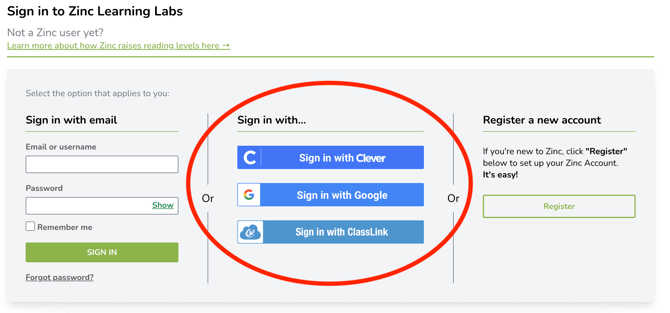
If you access Zinc through Clever, Google, or ClassLink, click the correct button on the Sign In Page and follow the instructions. You may need to grant Zinc the necessary permissions to continue.
If you're unable to sign in, you'll need to check with your teacher to make sure your information is shared with Zinc. It can take a day for student information to update in Zinc, so you might not have access the same day you're added to a class.
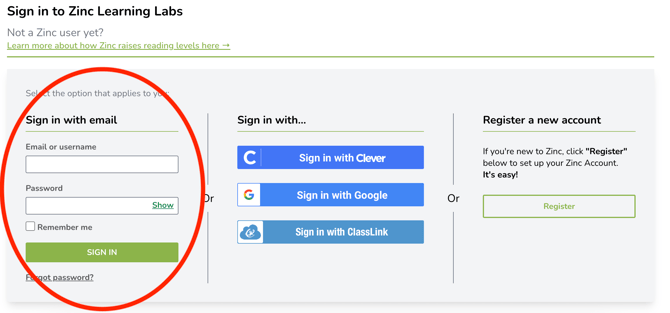
If you access Zinc directly, go to the Sign In Page and log in using your email and password. If you don't have an existing account, you'll need to Register for Zinc.
If your school uses Clever, Google, or ClassLink to access Zinc, you will not need to register. Please go to the Sign in for Clever, Google, and ClassLink Users section and follow those instructions.
For direct users who will be signing in with an email address and password, your teacher will provide you with a Join Link or a Join Code.
If you receive a Join Link and you need to register for a Zinc account:
-
Click that link or copy and paste it into the address bar of your browser
-
Fill in your email address (use your official school email address)
-
Confirm that you're being added to the correct class.
-
Enter your name, password and other details
-
Click Register
-
Start using Zinc!
If you receive a Join Link and you already have a Zinc account:
- Sign in using the Zinc Sign In Page (https://games.zinclearninglabs.com/) if you haven't already
- Click that link or copy and paste it into the address bar of your browser
- You'll be automatically added to the correct class
-
Continue using Zinc!
If you receive a Join Code and you need to register for a Zinc account:
-
Go to the Zinc Sign In Page: https://games.zinclearninglabs.com/
-
Click "Register" in the far right column
-
Copy and paste your Join Code and enter your email address
-
Confirm that you're being added to the correct class.
-
Enter your name, password and other details
-
Click Register
-
Start using Zinc!
If you receive a Join Code and you already have a Zinc account:
-
Sign in using the Zinc Sign In Page: https://games.zinclearninglabs.com/
-
Click "Classes" in the left menu
-
Click the green "Enter Join Code" button
-
Enter your Join Code in the pop-up window and click "Join"
-
Continue using Zinc!
How to Join a Class with a Class Code After You Register
This section is only for student who sign in to Zinc directly with an email address or username.
To join a class when you already have a Zinc account, you will need to get a Join Link or a Join Code from your teacher.
If your teachers gives you a Join Link:
- Sign in using the Zinc Sign In Page (https://games.zinclearninglabs.com/) if you haven't already
- Click that link or copy and paste it into the address bar of your browser
- You'll be automatically added to the correct class
-
Continue using Zinc!
If your teacher gives you a Join Code:
-
Sign in using the Zinc Sign In Page: https://games.zinclearninglabs.com/
-
Click "Classes" in the left menu
-
Click the green "Enter Join Code" button
-
Enter your Join Code in the pop-up window and click "Join"
-
Continue using Zinc!
What to Do if You're No Longer Part of an Active Class
To use Zinc as a student, you must be part of an active Zinc Class.
If you sign in to Zinc using Clever, ClassLink, or Google, you'll need to speak with your teacher and ask to be added to a class. Once this is done, your status will update overnight and you should have access the next day. If you are in your teacher's class roster but not in their Zinc class and a day has passed, please ask your teacher to contact Zinc for assistance.
If you sign into Zinc with an email address and password, you'll see the screen below if you aren't currently in a class.

The message above reads: "Oops! Looks like you're no longer part of an active class. If you have a join code from your teacher, enter it below. If not, please contact your teacher or school admin for help."
If this happens, reach out to your teacher. They will either give you a Join Link or a Join Code.
If your teacher gives you a Join Link:
-
Click that link or copy and paste it into the address bar of your browser
-
Click the "Sign in" link at the bottom of the page where it says, "Already have an account? Sign in."
- Sign in normally on the Sign In Page
-
Continue using Zinc!
If your teacher gives you a Join Code:
-
Enter the Join Code in the box where it says, "Type your join code here"
-
Click "Join"
-
Continue using Zinc!
Until you use a Join Link or Join Code, you won't be able to access any of the features on Zinc, so be sure to talk to your teacher right away.
The Zinc Dashboard and Menu
When you log into Zinc, you'll see your homepage or Zinc Dashboard. The left side of the page is your menu. At the top of the page, you'll find Zinc Journeys, which you can start right away. If you have any individual assignments from a teacher, you'll find those beneath Zinc Journeys.
The biggest section of your Zinc homepage is Zinc Journeys. We recommend every student start with Zinc Journeys. Just follow the directions in the Zinc Journeys window to get started!
In the Navigational Menu on the left side of the page:
-
Clicking "Home" or the leaf in the top left corner will always bring you back to your Dashboard.
-
"Classes" will show you a list of classes you're connected to in Zinc
-
"Messages" will take you to your Zinc notifications
-
Clickable steps under "My Journey" will take you to that phase of your Zinc Journey
-
"Past Activities" will take you a list of your current and past Zinc activities
-
"Bookshelf" will show you the books you select with the Book Recommender when you complete Missions
-
"Performance" will take you to your detailed Student Performance Report
-
"Level Placements" will show current and past Level Placements
-
"My Rewards" will show your accomplishments and rewards in Zinc and Zinc Journeys
-
"Leaderboard" will show how the points you've earned in Zinc compare to other students in your class, school, and all of Zinc
-
Clicking your initials or avatar will let you change avatars
-
"Profile" will take you to your profile page
-
"Help" will take you to a list of help articles, including this one
-
"Log Out" will end your Zinc session
You'll need to sign into Zinc to see your assignments. Zinc Journeys will always be available on your Zinc homepage.
When your teacher gives you a new assignment, you'll receive a notification on the chat bubble in the top right-hand corner of your Zinc Dashboard. If you click on the chat bubble, you can click on the assignment and go to the assignment page.
You'll find a list with any active assignments under My Assignments on your Zinc homepage. Assignments can be found on this list until you complete them or they expire. Make sure to complete assignments as they arrive so that they don't expire!
Let's take a look at the different types of assignments and see what you'll be doing in Zinc.
Zinc Journeys
Zinc Journeys is the biggest assignment on Zinc! It's always found on your Zinc homepage. Complete Zinc Journeys to earn avatars, points, and achievement badges. Best of all, you'll find ways to make reading easier and more fun.
With Zinc Journeys, you'll start off with a quick survey, and then a Level Placement if you haven't done one recently. Then you'll begin Ignition, which helps you work on important reading skills with the help of video reading coaches. After Ignition, you'll be introduced to other Zinc activities and learn about motivation in Lift Off. Then you'll begin Missions, where you'll practice Ignition skills in your choice of articles and Close Reading Experiences. You can read more about the different sections of Zinc Journeys below, or you can jump into Zinc Journeys right now!
Level Placements
You may be given a Level Placement by your teacher or by Zinc Journeys. If it's part of Zinc Journeys, find it in the Zinc Journeys window. If your teacher assigns you a Level Placement, you'll find it in My Assignments under Zinc Journeys.
Completing a Level Placement allows Zinc to show you texts and activities to best help you grow as a reader. You may be tempted to rush through the Level Placement, but giving it your best effort will make Zinc a more helpful and hopefully enjoyable experience.
After you click on the assignment, you'll be taken to the first passage of the Level Placement. Read the passage carefully and answer the multiple choice answers.
The Level Placement itself is made up of 3 to 4 short passages with a total of 9 to 12 questions. Expect to spend 10 to 20 minutes. Please do your best and do not rush. The Level Placement will end when you've finished enough questions to determine your Zinc Level.
When you're done, you'll be shown your current Zinc Level. Zinc activities like articles, Ignition, and Lift Off will use your Zinc Level to show you content to help you get stronger reading skills. Please do your best on your Level Placement.
Ignition is a hands-on way to grow as a reader. As you move through Ignition, you'll meet video coaches who guide you through short texts, ask questions, and prompt you to use the four Zinc close reading skills.
You'll find Ignition inside Zinc Journeys. The Ignition screen you everything you'll be doing. First you'll do a quick survey, and then you'll dive into Use Your Senses, Make It Real, Pronouns, and Navigators. After completing each pair of skills, you'll show what you know in a skill check.
You'll be asked to make predictions, select answers, type your own ideas, click or drag important words, and more. The person in the video will guide you all the way.
You'll start each section looking at passages that match your Zinc Level. Depending on your answers, you may see passages that are one or even two levels above your Zinc Level.
After you finish all the sections, you'll do a short follow-up Level Placement to show how much your reading has grown. Be sure to take your time and do your best.
Lift Off
After completing Ignition in Zinc Journeys, Lift Off explains the value of motivation and introduces the reading practice you'll find in Missions.
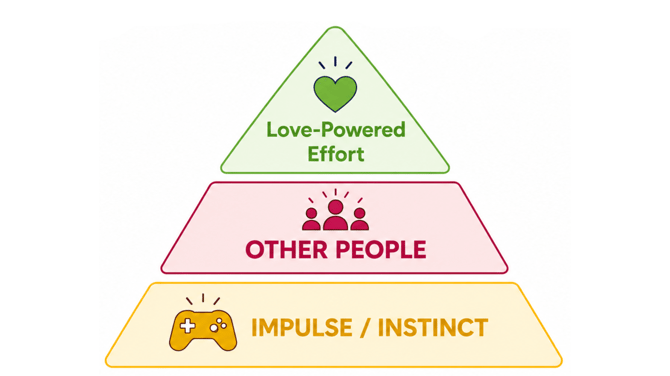
Lift Off includes one article and one Creative Reading Experience. Both activities address overcoming difficulties, specifically the challenge of reading. They discuss the value of internal motivation and love-powered effort. Complete Lift Off to choose a space vehicleand continue your Zinc Journey.
Missions
Missions are part of Zinc Journeys. You'll start Missions once you complete Lift Off.
In Missions, you're in control! Once you reach Missions in your Zinc Journey, you'll choose the topics and texts you want to explore from themed Missions. Twelve different Missions are available in the Fall, and twelve more will unlock in the Spring. Every Mission includes two Articles with quizzes and Vocabulary and one Close Reading Experience.
As you journey through Missions, you'll be rewarded with additional avatars, badges, and points. Completing activities will also open Zinc's Book Recommender, which shows you cool new books about the things that interest you. You should be able to find these books at your school or local library. The more times you complete Lift Off, the more book recommendations you'll get!
In Missions, you get to choose the themes and topics of your activities. You can work on any available Mission, and you can narrow down your selection by clicking on topics and sub-topics. You'll see articles for your current Zinc Level, one level higher, and one level lower.
Missions also includes Vocabulary.
Articles
If you've been assigned an article, it will appear on your Zinc Dashboard or homepage under "Recent Active Assignments." Articles will also be part of Lift Off and Missions.
Zinc articles include excerpts from great books, cool sports stories, crazy true events, cozy articles about nature, and poetry and essays by students just like you.
When you select an article or click on an article that's been assigned to you, you'll be taken to the article page in Zinc. This page will tell you what you need to do to complete your assignment.
If you've been assigned an article to read, it will include a quiz. If that's everything you need to do, you'll see a page like the one below. Along with the article and quiz, you'll have the option to learn words from the article in Vocabulary.
Articles assigned by your teacher may include Vocabulary activities and writing prompts. Anything you need to complete for an article assignment will be on the article page.
If Vocabulary is assigned with the article, you need to start there by clicking "Learn Words." If you don't complete required vocabulary, you won't be able to unlock the quiz. Click "Read Article" to get to the article itself, which you should read carefully. The article itself might be on Zinc or on another site.
The quiz will be the same whether or not you need to do vocabulary. Each quiz includes Warm-up, Target, and Challenge questions. Warm-up and Target questions are worth more points than Challenge questions. You'll make predictions to unlock the answers. Please check the article if you aren't sure about the answer!
If you were assigned a writing prompt with the article, you will start it after the quiz. Follow the AI Writing Coach's instructions for taking notes, organizing your ideas, providing details, writing your response, and revising your response. Submitting your final response will complete the writing prompt.
If you've been assigned a vocabulary game, it will appear on your Zinc Dashboard or homepage under "My Assignments." Vocabulary may also be included in an article assignment in Zinc Journeys.
When you've reached Missions in Zinc Journeys, you can click the VOCAB gauge on the right side of the screen. Start up crucial Vocabulary sets to fuel up your Zinc Journey. Zinc Journey vocab will be available with Spaced Repetition, so you'll see the words multiple times over a period of a couple of months.
Zinc offers word sets about an unbelievable number of topics. If you're looking for a way to get a head start on assigned reading, important tests, studying history, or understanding the world, the Zinc vocabulary games are an excellent place to start. Good luck as you build your vocabulary with Zinc!
Vocabulary Assignment Page
Each Vocabulary set includes one or more decks. If there are more than 10 words in the set, they are divided into decks of 10 words or less.
When you select a vocabulary game or click on one that's been assigned to you, you'll be taken to the vocabulary page in Zinc. There you can click an orange play button to get started. You'll review the words and play through different game modes: image, synonym, sentence, and definition. You may play different combinations of these modes in the obstacle course mode.
As you can see, you can also see how many words you've learned in Zinc. Learning words earns points, and you'll gain more points by completing vocabulary while a bonus timer is visible, avoiding the word bank, and answering quickly.
Ways Vocabulary May Be Assigned
Vocabulary assignments may include a timer that counts down, and a deck may restart if you select a wrong answer. Don't worry, each activity is very short, and you'll learn the words well enough to complete the deck. If you need help, be sure to check the word bank, which can be viewed by clicking "View Word Bank" in the top-left corner of the screen.
Vocabulary with an Article
If your assignment includes an article with vocabulary, you'll play a single deck with all 4 modes of gameplay. You'll need to finish the Vocabulary before you start the article quiz. You'll only go through the deck of words once.
Vocabulary with Spaced Repetition
If you are assigned vocabulary with spaced repetition, you see the same words six times over the course of two months. This helps you learn the words so they stick with you. If you play a newly unlocked exposure within three days, you receive 2X or 3X bonus points!
Below is an example of a vocabulary set with 50 words split between 5 decks. As you can see, the student has completed the first exposure of the first deck. This unlocks the first exposure of the second deck. The timer shows how long until the next exposure of the first deck can be played.
Vocabulary with Spanish Support
If you've been assigned a Close Reading Experience (CRE), it will appear on your Zinc Dashboard or homepage under "Recent Active Assignments." CREs will also be part of other Zinc activities like Lift Off and Missions. Zinc's Ignition works like a series of Creative Reading Experiences.
Close Reading Experiences are interactive lessons with a focus on reading skills. Each CRE includes a video guide who explains the passage and helps you answer questions and work with the text. Sometimes you'll select answers, create your own answer, click or drag words, and much more.
If you run into any issues while completing a Creative Reading Experience, reread the question or instructions from the video guide. They do an excellent job explaining what you need to do.
Your performance report is a record of everything you've done in Zinc, including the success you've had becoming a stronger reader. To reach your Performance Report, click "Performance" under "Learning" in the left navigation menu.
Your performance report shows everything in your current Zinc Journey. Click the "All Activities" tab to view everything you've done in Zinc.
Changing Avatars
You'll receive avatars as you progress through Zinc Journeys. You can choose a new avatar when you earn them. You can also switch avatars by clicking your avatar or initials in the circe at the bottom of the left navigation menu.
If you click on "Profile" at the bottom of the left navigation menu, you can access your profile page in Zinc
You'll be able to make changes here to your account. After you're finished with your changes, click "Save Profile Changes." If you don't save, your changes will be lost.
Many Zinc activities include making predictions. If you'd like to learn why it helps you to make predictions in Zinc, please watch this helpful video!
Making predictions before answering a multiple choice question is an important part of Zinc-ing. Taking time to form your own answer before seeing the options helps you in many ways, both inside and outside Zinc.
Completing a prediction in Zinc is simple. First, read the question. Consider what the answer will be. If you need to, you can always look at the passage again.
Click on the text box and type a few words about what you think the answer will be. It doesn't need to be detailed or a complete sentence. The most important part is thinking it through.
When you finish your prediction, click the "Submit and Unlock Answer Choices" button.
Read over all the answer choices and compare your prediction to them. Do any of them match your choice? Do you see a stronger answer? Select the answer you believe to be correct. Remember, you can always go back to the article.
Remember, you don't have to be right on your prediction, and you don't have to write in complete sentences. You can even change your mind once you see the answer choices. The goal is for you to thoughtfully consider the question!
What are you waiting for? Sign in to Zinc and get started in Zinc Journeys!