
Welcome to Zinc Learning Labs! We’re here to help you equip your students with essential reading skills. Our platform provides activities that are easy to assign, highly interactive, and automatically leveled for students.
The majority of Zinc activities are graded by the system, and Zinc Journeys is automatically available to every student. Your students instantly have access to content to strengthen their reading skills and encourage a life-long love of reading. Meanwhile, you can track student success in our comprehensive reports, available right on your homepage.
Students who complete Zinc’s Ignition through Zinc Journeys should see reading gains stay with them throughout the school year. Our testing shows 45% of students went up at least one Zinc Level, which is equal to 1.5 grade levels.
This article is designed to help teachers get the most out of Zinc. If you’re looking at how to sign in, set up your classes, or get started, we’ve got you covered.
If you don’t find your answer, Zinc Support is available to help. Click the green speech balloon in the bottom right of Zinc or email us at support@zinclearninglabs.com.
How to Sign in to Zinc
The way your school accesses Zinc determine how you sign in to Zinc. Below, you will find directions for Clever, Google Classroom, ClassLink, and Direct users. Teachers utilizing Zinc for home use will most likely be direct users. If you're unsure which method to use, please contact an administrator, IT department, or Zinc Support.
If you access Zinc through Clever, Google, or ClassLink, click the correct button on the sign in page and follow the instructions. You may need to grant Zinc the necessary permissions to continue. The first time you reach your Zinc homepage, you may need to click the "Register" button to begin.
For more information about signing in and managing your classes, including helpful videos, please visit Managing Zinc Classes and Rosters for Teachers.

If you access Zinc directly, go to the sign in page and log in using your email and password. If you haven't created a Zinc account (or had one created for you), you'll need to Register for Zinc.
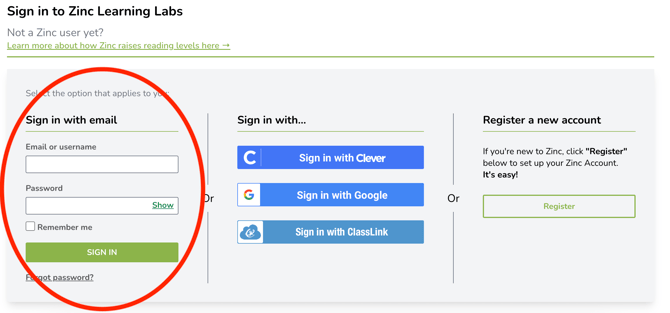
If your school uses Clever, Google, or ClassLink to access Zinc, you will not need to register using this method. Please go to the Sign in for Clever, Google, and ClassLink Users section.
If you are a direct user who will sign in to Zinc using email address and password, you have three options to for registering with Zinc. You may receive an invitation from Zinc, a Join Link, or a Join Code from your admin or from Zinc . You might also have your account created by Zinc.
Direct Teacher Zinc Invitation
You may receive and invitation to create an account from support@zinclearninglabs.com. Click the link in the email and follow any onscreen instructions to register for your account. (If you aren't seeing an expected invitation, please check your spam folder.)
Direct Teacher Join Link or Join Code
If you receive a Join Link, click that link or paste it into your address bar. You'll be walked through creating an account. You'll be automatically added to the correct school.
If you receive a Join Code, you'll need to visit the Zinc Sign In Page and click "Register." Here's a direct link to the registration page. Be sure to select your role as Teacher, enter your Join Code, and input your email address. Once you've confirmed that information, fill in the rest of your details to complete the registration process.
For information about setting up classes for direct teachers, please view Managing Zinc Classes and Rosters for Teachers.
Zinc Classes and Rosters
In order to interact with students in Zinc, they must be part of a class. Educators must be the teacher for a class or have administrative access in order to give students assignments or view reports.
Has a new transfer student joined your class? Please see below for details about setting up new students in Zinc.
The way you create or update your Zinc classes depends on the way you access Zinc. Direct users will make roster changes inside Zinc. SpringBoard, Clever, Google Classroom, and ClassLink users must make roster changes on those platforms. For more information, please see Managing Zinc Classes and Rosters for Teachers.
To interact with your list of classes and students inside Zinc, click "My Classes" in the left navigation menu. On this page, you will see a list of all your active classes. You can click on the Students tab to see a full list of students in your classes or to search for a specific student.
Clicking on a class will bring up a list of the students in that class. Clicking on a student's name will bring up their Individual Performance Report.
On your My Classes page, you have the option to nickname or star a class. To nickname a class, click "add nickname" and type in the nickname of your choice. You can also click the star to the left of a class to make it easier to find in the list. A star can be removed by clicking it again.
Implementation Guide and Getting Started
Every student in Zinc automatically has access to Zinc Journeys. We recommend teachers start by encouraging their students to sign in to Zinc and start Zinc Journeys, preferably at the beginning of each semester.
Zinc Journeys provides auto-leveled, growth-focused content across the entire semester.
In Zinc Journeys, students begin with a Level Placement if necessary, and then they start Ignition. Ignition introduces interactive activities and important reading skills. Following Ignition is Lift Off, where students practice the skills introduced in Ignition. Lift Off provides auto-leveled content with article quizzes, vocabulary games, and Close Reading Experiences (CREs).
To get the most out of Zinc Journeys with your students, we recommend 15 to 20-minute sessions, 2 to 3 times a week.
If you would like to cover Ignition skills in classroom instruction, we offer a variety of ready-made material, such as editable slideshows. You can incorporate these lessons however you like. Find these and other great materials under Teacher Resources. This material can be found under Teacher Resources in the left navigation menu. Here's a direct link to our Classroom-Ready Resources page, and links to the editable slideshows are below.
Test Prep Mini-Lessons
-
English mini-lessons
-
Spanish mini-lessons
Zinc Ignition Skills
In Zinc, students work to develop and strengthen essential reading habits. Successful reading comprehension boils down to two active skills that we call Zinc-ing and Tracking. Let’s take a look at these two skills and their sub-skills below.
Zinc-ing
Zinc-ing means turning words and phrases into images, experiences, and meanings in our minds.
People who enjoy reading often do this naturally, but everyone benefits from practicing and deepening these habits. Students who don’t like reading or have struggled with it in the past often respond to the simple idea of Zinc-ing. It’s a fresh concept that they might just be open to trying.
Zinc-ing has two sub-skills: Use Your Senses and Make It Real.
Use Your Senses
In Zinc activities that encourage the Use Your Senses skill, students are asked to find words they can easily imagine and “experience” these words in their head. This process gives every reader a place to start in a challenging passage. They should use all their senses to see, hear, taste, touch, and smell the sensory details in the text.
Great writing expands the reader’s experience with key images. More advanced readers will work with key images, picturing them and noticing the thoughts and feelings they conjure. To appreciate and enjoy advanced texts, readers must embrace the importance of these key images.
Would you like to introduce your students to Use Your Senses? Click here for a free, editable slideshow lesson.
Make It Real
Many abstract words do not make images in our minds. It's easy to overlook those words and miss critical information. When Zinc encourages students to Make It Real, they take abstract terms and apply their own relevant example.
For example, when Shakespeare says, "A rose by any other name would smell as sweet," we ask a student to actually think of another name for the flower. Would the rose’s smell change if we called it “Steven"? With Zinc, students take these difficult concepts and apply their own examples to “make it real.”
Would you like to introduce your students to Make It Real? Click here for a free, editable slideshow lesson.
Tracking
In Zinc, “tracking” is following the path created by the writer. Our activities help students use the clues and road signs in the text to arrive at the writer’s intended destination.
Everyone has gotten lost in a passage at some point in their reading journey. With Zinc, students learn what to look for so they can get back on the right path. Whether a reader is struggling with a single sentence or a longer text, the tracking skill will show them the route to success.
Tracking has two sub-skills: Pronouns and Navigators.
Pronouns
In these Zinc activities, we ask students to track pronouns back to their antecedents in order to follow what’s going on in the text. Basic pronouns like, “she,” “he,” or “they,” are covered, as well as pronouns like “it” or “this” or “that” that often get overlooked. We also dig deeper in challenging texts, looking at phrases that represent other stated ideas.
Zinc helps students link these pronouns. This skill opens up difficult texts, and helps students track what the author wants to tell them.
Would you like to introduce your students to Pronouns? Click here for a free, editable slideshow lesson.
Navigators
In a text, writers give signals to guide readers through layers of meaning. Navigators come in the form of punctuation, navigator or transition words, and asides. For example, "however" is a signal to expect a contrasting layer of information, whereas a comma or a colon may signal us to expect an explanation.
Zinc activities draw attention to these road signs and help students understand how to follow them. Through these exercises, students learn how to navigate difficult passages. Understanding navigators help students better comprehend the tone, structure, and other details of a text.
Would you like to introduce your students to Navigators? Click here for a free editable slideshow lesson.
Making Predictions
Making predictions is an important part of Zinc-ing. Zinc requires student to make their own predictions before answering a multiple choice question. We ask students to take this extra step to discourage fast guessing and encourage critical thinking. This leads to positive outcomes for students both inside and outside Zinc.
Completing a prediction in Zinc is simple. First, students read the question and consider what the answer will be. If necessary, they can always review the text.
Students then click on the text box and type a few words about what they think the answer will be. The system doesn’t require a detailed response or a complete sentence.
Once the student makes their prediction, they click the "Submit and Unlock Answer Choices" button. The possible answers will then appear, and the student can compare those answers to their prediction. Do any of them match? Is there a stronger answer? Again, students can go back and check the text before submitting their answer.
We make it clear that students don't have to be right on their predictions, and they can always change their mind once the answer choices appear. Our goal is for students to thoughtfully consider their answers inside and outside Zinc. This skill proves especially valuable in test-taking environments.
Zinc Dashboard: Menu, Zinc Journeys, and Recent Assignments

When you first sign in to Zinc, you'll see your homepage or Zinc Dashboard. The left navigation menu allows you to quickly access your Saved Content, My Classes, Reports, A La Carte Activities, and Teacher Resources.
On the homepage dashboard, you'll see the Zinc Journeys progress for each of your classes. You'll also see any recent assignments. Clicking "View Report" will take you to the detailed reports for each activity.
Your students have their own Zinc Dashboard and menu, which is fully explained in their How to Use Zinc for Students guide.
Left Navigation Menu
The left navigation menu on your Zinc homepage helps your to quickly reach what you need.
My Saved Content includes your Zinc bookmarks.
My Classes helps you view and manage your Zinc classes.
Under Reports, you can explore Class/Student Reports or view the Leaderboard.
Under A La Carte Activities, you can assign individual Level Placements, Close Reading Experiences, Articles + Texts, and Vocabulary.
If your district is participating in Zinc Test Prep Programs, those will be accessible from this menu.
Under Teacher Resources, you can view the latest Zinc Implementation Guide, download Classroom-Ready Resources, and find Zinc Professional Learning opportunities.
Assigning Zinc Activities
Clicking one of the activities under A La Carte will take you to that activity's browse or assignment page. Remember, Zinc Journeys is automatically available to all students and includes Level Placements, Ignition, Lift Off, and Missions.
Below are summaries of each activity and a link to their feature help article.
Zinc Journeys activities, available to all students from day one:
-
Ignition: This interactive, video-guided, multi-week reading program is the recommended starting point for Zinc. Following the brief reader survey and initial Level Placement, Ignition is the first major component of Zinc Journeys. Ignition is automatically available to all students. At the end of Ignition, students take a follow-up Level Placement to demonstrate any growth.
-
Zinc Lift Off: Lift Off introduces the types of activities students will complete in Missions. It includes one article and one Creative Reading Experience dedicated to the benefits of reading and how to find motivation to overcome challenges.
-
Missions: After a student completes Ignition and Lift Off, they begin a series of Missions in Zinc Journeys. This auto-leveled program allows students to explore themed Missions, choosing practice material that interests them. Missions are available to all students after they complete Ignition and Lift Off.
A La Carte Activities
-
Level Placements: This shorts assessment helps you track reading growth and allows Zinc to provide each individual student with challenging and appropriate content. Level Placements may be assigned here, but they are also available to students as part of Zinc Journeys.
-
Articles + Texts: Leveled articles and their associated quizzes can be assigned with or without quick vocabulary games and short writing prompts. Assign Now
-
Vocabulary Games: Assign pre-made vocabulary games or quickly create your own from our extensive library of words. Assign Now
-
Close Reading Experiences (CREs): Students work directly with the text in these interactive lessons with friendly video guides. Assign Now
Grading Zinc
Teachers often ask how to grade Zinc activities or how to include Zinc in their grade book. This is easy to do, and it's a convenient way to give students more chances to succeed. Please remember that Zinc provides content to students at their determined reading level, so students may experience different challenges. Zinc provides guidance whether students get an answer right or wrong, and students benefit from every activity they complete in Zinc.
For Zinc Journeys, Ignition, Missions, and any other Zinc activities that go into the grade book, we recommend using a rubric or some other holistic grading tool. One method would be giving a completion score for required activities finished on time and add bonus points or additional completion grades for students who finish additional activities inside Zinc.
For example, if a student completes Ignition by the date you've set, they might receive two scores of 100 in the grade book, one for each week of Ignition. If they finish Ignition after the set date, you could deduct 10 points for each day. Once Ignition is completed, Students may choose additional Power-Up activities, and you could reward them with 5 bonus points for each completed activity.
Canceling Zinc Activities
Please note: Zinc Journeys, which includes Ignition and Missions, cannot be canceled. It will always be available to students.
If you’d like to cancel an assignment for individual students or a whole class, go to your Zinc homepage. On any of the assignments for a class, click the "View Report" link for the assignment you wish to cancel. (If the assignments isn't under a class, click "View more assignments," and you'll view a full list of past assignments with the same "View Report" links.)
Once you've clicked "View Report," you'll be taken to that assignment's Activity Progress Report. Every activity has its own Activity Progress Report, so make sure you're on the correct report for the correct class.
Once on the correct Activity Progress Report, click the "Cancel Activities" button. This takes you to the cancelation page, where you can select individual students or click the checkbox in the top row of the table to select all students in the class.
Once you've made your selection, click "Cancel Selected," and the assignment will no longer be visible on those students' Zinc homepages.
Zinc is an excellent resource for bringing new or transfer students up to speed in your classroom.
If you are a direct user, you have several methods for adding new students to you Zinc class. Please view Managing Zinc Classes and Rosters for Teachers for more details. If you require additional student licenses, please contact your administration, IT department, or Zinc Support.
If you access Zinc through Clever, Google Classroom, ClassLink, or SpringBoard, then your Zinc classes depend on those rosters. You can start by making sure the new student is present in your Zinc class. Click My Classes in the left navigation menu to review your classes. Here's a direct link to your My Classes page. From here, you can click on the new student's class. You can also click the student tab and search for them using the search bar. If the student is not present in Zinc, please confirm that they are present in your rosters.
New students will automatically receive Zinc Journeys on their homepage. Any other other assignments created before they joined a new class will need to be assigned to new students individually. Please assign new student any relevant activities. If you'd like to track their progress with the entire class, the Comprehensive Class Report allows you to view all the assignments for a class in one place.
It's possible that a student already has an active assignment from a previous teacher, and you are unable to give them a duplicate of the assignment. In this case, please encourage the student to complete the previous assignment, as it will still be visible in your reports.
Don't worry, any work a student has done with Zinc Journeys or Level Placements will be visible in your Zinc Journeys Report once they've been added to your class.
Student Self-Selection and Using Zinc for Free Time
The easiest and most recommended method for students to explore content in Zinc is to work their way through Zinc Journeys. This will provide students with trackable success through Level Placements, Ignition, Lift Off, and Missions.
Teacher Reports
Zinc offers all the reports you need to track student success and reading growth. There are two primary ways to access reports, from your Zinc homepage and your Reports page.
Your Zinc homepage will show a "View Report" link for every recent assignment. This link will take you to the Activity Progress Report for that class assignment. Click "View More Assignments" to see all active assignments for a class.
To reach the full Reports page, click “Class/Student Reports” under “Reports” in the left navigation menu.
When students complete activities like Zinc Journeys, an article quiz, or a vocabulary game, they earn points! There is an overall Leaderboard for your school, as well as Leaderboards for each class. Teachers may view the Leaderboard by clicking "Leaderboard" under "Reports" in the left navigation menu. Here's a direct link to the Leaderboard.
You can sort the Leaderboard in several ways. Use the tabs to view your entire school or a specific class. On the "By Class" tab, you can select any of your classes with the dropdown menu. You may sort by name, total points, assignment points, words learned, and articles read.
This Month and This Semester refer to points earned during that period, while “All Time Points” are all the points a student has earned in Zinc.
Students may find the Leaderboard in their own left navigation menu.
Please note, not all districts or campuses have the Leaderboard active. If your school has decided to opt out of the Leaderboard, your students will not see the Leaderboard or anything associated with it. The points they earn will still be visible on their Zinc profile page.
You can bookmark Zinc articles, Close Reading Experiences, and vocabulary sets that you want to assign later. Your bookmarks can be found by clicking “View Classes & Reports” in the top menu and then clicking “Bookmarks.” On the Bookmarks page, you can click on tabs for the different types of assignments. Here's a direct link to your Bookmark page.
To create a bookmark, click on the bookmark or flag-shaped icon near the title of each assignment selection. The unselected bookmark icon will be outlined in yellow. Once you click on the bookmark, it will turn yellow. You may now find it in your list of bookmarks.
Free Classroom and Instructional Resources
Free resources for classroom instruction can be found by clicking “View Classes & Reports” in the top menu and then clicking “Teacher Resources.” The teachers resource page includes links to Zinc lesson plans and classroom activities, instructional videos about Zinc-ing and tracking reading skills, and professional learning opportunities.
Here’s a direct link to use and share: https://www.zinclearninglabs.com/zinc-users-teacher-resources-page
Alignment to Standards
Zinc promotes reading skills that meet standard curriculum requirements. For details about current standards alignments supported within Zinc, please visit our "Is Zinc Aligned to standards?" help article.
Editing Your Profile
To update your profile image, click circle containing an image or your initials at the bottom of your left navigation menu.
Under your profile image or initials, click on "Profile" at the bottom of your left navigation window, you can access your profile page in Zinc. Click here for a direct link to your profile page.
Here you can make certain changes depending on how you access Zinc. Once your changes are complete, click "Save Profile Changes." If you don't save, your changes will be lost.
Using the same method, students can also access their own profile to make these changes.
Impersonate Student Accounts
If you ever need to access a student's account, you may do so using Impersonate. Note: Be careful! Any actions you take in the account will be real. Please avoid any unintentional changes.
To Impersonate a student account:
-
Click "My Classes" in the left navigation menu
-
Click on a class or search for a student
-
Click on the student's name to view their Student Performance Report
-
Click the green "Actions" button and click "Impersonate"
While you are Impersonating a student's account, you will see a yellow banner at the top of the screen with their name. When you're finished, click "Stop Impersonation" in the banner. This will return you to your own account.
Blocked Articles Whitelist Solution
To provide current, real-world texts, many Zinc articles are located on from vetted websites. You may have issues with your school, district, or home network blocking these sites with an internet filter.
We offer an up-to-date guide and whitelist, so your students can get the most out of Zinc. Please follow the guide at this link or forward it to your IT department: https://help.zinclearninglabs.com/en/articles/2208938-whitelisting-zinc-articles-and-domains